


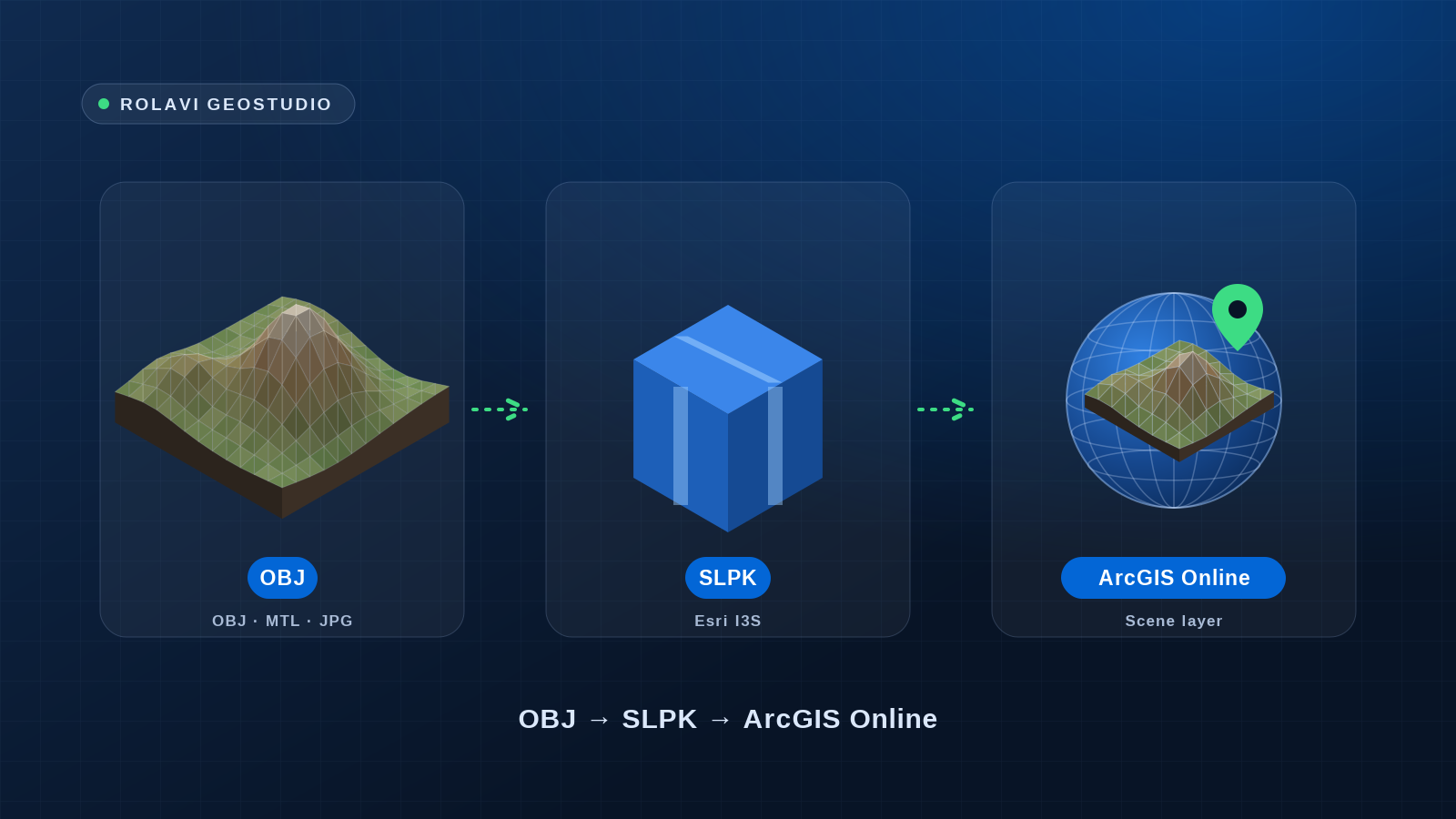
A textured OBJ is easy to create but hard to share. It travels as several files (geometry, materials and textures) and needs desktop software to open. Packaged as an SLPK, the same model becomes a scene layer that anyone with access can open in a web browser, in its place on the map.
What is an SLPK?
An SLPK (scene layer package) is a single file that stores a 3D layer and its cache, based on the open I3S specification. ArcGIS Online can publish it as a hosted scene layer, ready to view in a web scene.
ROLAVI GEOStudio creates that package directly from your OBJ model and can send it to your ArcGIS Online organization in the same workflow.
Before you start
- The complete model. Keep the OBJ together with its MTL file and texture images in the same folder.
- A known coordinate system. For the model to appear in the right place, it must be georeferenced and you need to know its coordinate system and height reference.
- An ArcGIS Online account with publishing privileges. Publishing from a scene layer package requires the privilege to publish hosted scene layers in your organization.
- ROLAVI GEOStudio. Install it from the Download center; the 7-day trial includes every function.
Convert the OBJ to SLPK in ROLAVI GEOStudio
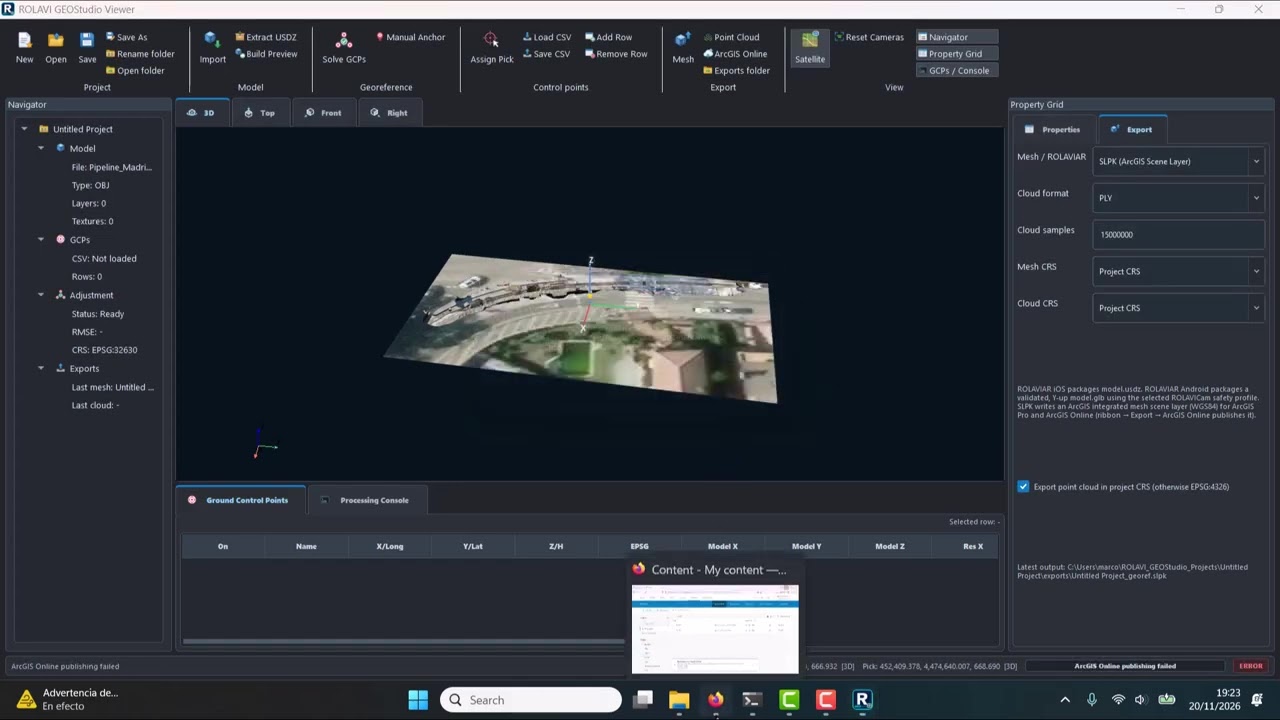
The video at the top of this article shows every click. In short:
- Open the model. Load your textured OBJ in the GEOStudio Viewer and check that the geometry and textures display correctly.
- Check its position. Confirm the coordinate system and heights before exporting: an error here moves the whole model on the map.
- Export to SLPK. Choose the SLPK export and save the package next to your project.
Publish it to ArcGIS Online
From ROLAVI GEOStudio you can send the SLPK directly to your ArcGIS Online organization: sign in with your account and publish the package as a scene layer, without opening other desktop software.
The package and the layer are separate items. After publishing, both appear in your content. Share the scene layer with the people who need to see the model.
Prefer to do it manually? You can also upload the .slpk from Content → My content → New item in ArcGIS Online and publish it as a hosted scene layer.
Measure it in ROLAVI Viewer
The same SLPK can be uploaded to ROLAVI Viewer, our web viewer at viewer.rolavi.net. There you can:
- VolumesCalculate volumes and generate a report for each calculation.
- Cut and fillCompare two DEMs to see where material was removed or added.
- OrthomosaicsImport orthomosaics to review the model with real imagery.
- Profiles and CADCalculate terrain profiles and export them to CAD.
ArcGIS Online is optional: you can use the SLPK only in ROLAVI Viewer, only in ArcGIS Online, or in both.
Final checks
Open the layer in a web scene and check that the model sits in its real location, at the correct height and with complete textures. If it appears displaced or below the terrain, review the coordinate system and height reference in GEOStudio and export it again.
An SLPK makes the model easy to share; it does not change its accuracy. The quality of the result still depends on the capture, the control points and the processing of the original model.
Esri references: Esri · Publish hosted scene layers ↗ · Esri · Scene layer package ↗